Understanding scan results
The Scanner page lists every scan you've ever run on your website. This guide explains what each column means.
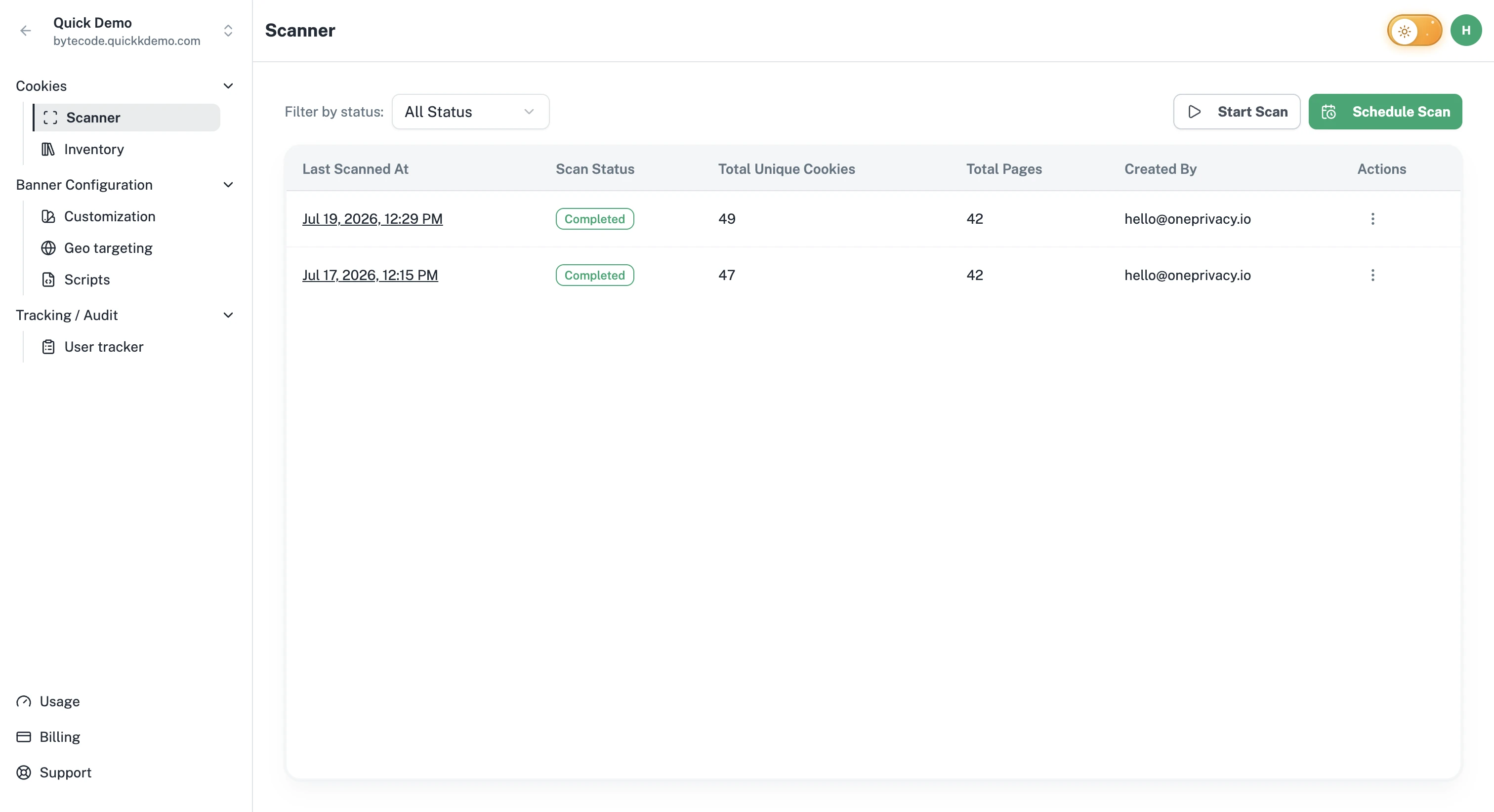
The columns
Last Scanned At. When the scan started.
Scan Status. Whether the scan is still running, finished, failed, or was cancelled. See Scan statuses below.
Total Unique Cookies. How many distinct cookies were found across the whole website. The same cookie set on multiple pages is counted once.
Total Pages. How many pages the scanner visited.
Created By. The teammate who started the scan, or "system" if it was triggered by a scheduled scan.
Actions. A menu where you can cancel a scan that is still in progress. See Cancelling a scan.
Scan statuses
In progress. The scan is currently running. The list refreshes every few seconds while a scan is in progress.
Completed. The scan finished successfully. Click the row to open the details.
Failed. Something went wrong before the scan finished. Try starting a new one. If it keeps failing, see Scan failed or stuck.
Cancelled. Someone in your team stopped the scan before it finished.
Filter the list
Use the Filter by status dropdown at the top to show only scans of a specific status. Useful when you want to find a recent failure or a specific completed run.
Comparing scans
Two scans run a week apart usually look almost identical. The interesting moments are when the Total Unique Cookies number changes, which usually means a new cookie or vendor was added to your website.
Open both scans and compare the cookie lists side by side to see what changed.