Cookie inventory overview
The Cookie Inventory is your master list of every cookie ever found on your website. It's where you tidy up descriptions and decide which category each cookie belongs in.
Keeping the inventory clean makes your audit trail easier to read and gives your team a single source of truth for what runs on your site.
Open the inventory
Open your project and go to Cookies → Inventory.
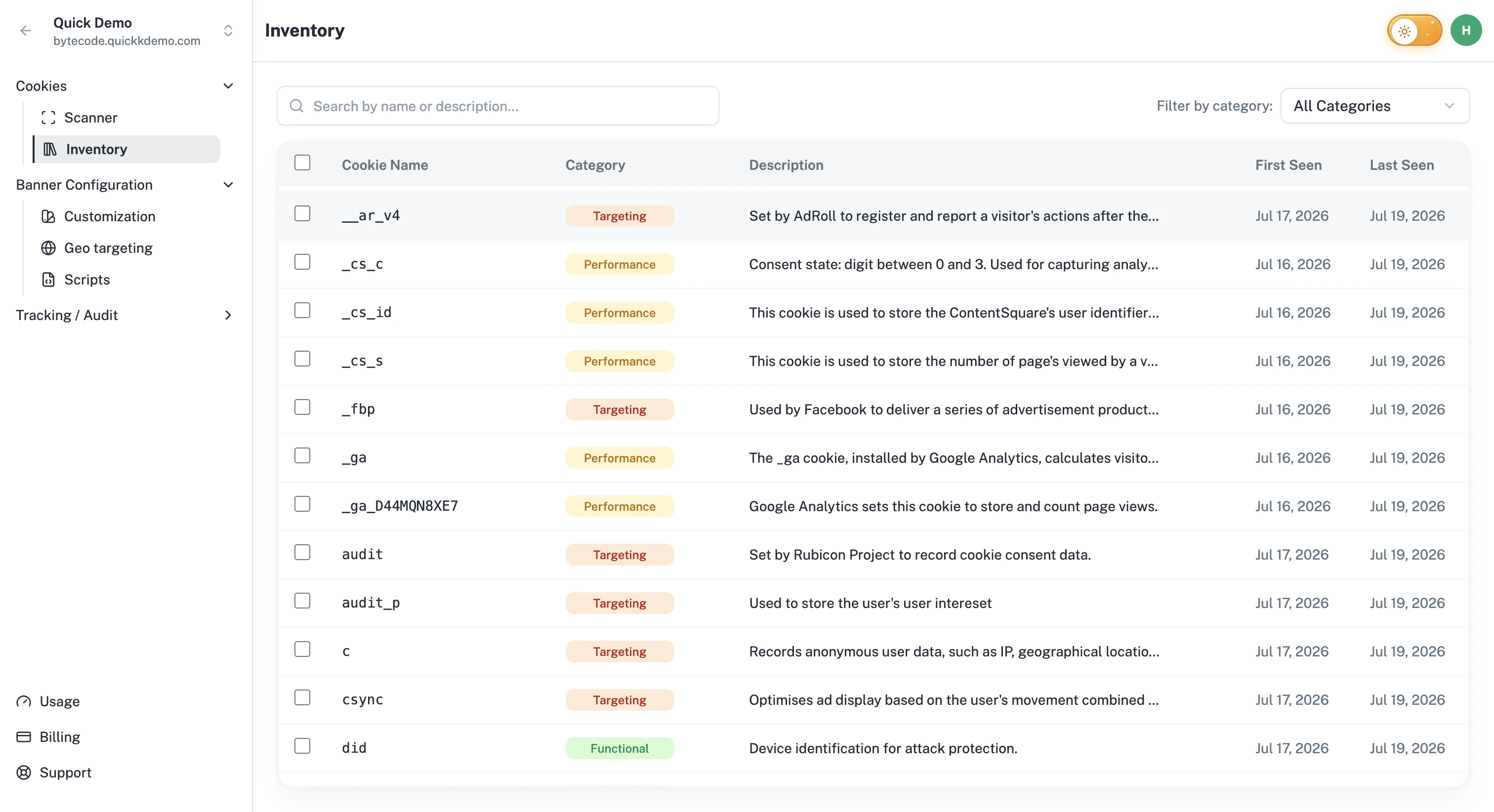
What you'll see
A row for each unique cookie found across all your scans. The columns include:
Cookie name. The exact name of the cookie.
Category. The consent category the cookie belongs to.
Description. A short note about what the cookie does.
First Seen / Last Seen. When a scan first found the cookie, and the most recent scan that saw it. Handy for spotting cookies that have quietly disappeared from your site.
Filter and search
Search by name. Type in the search box at the top to find a specific cookie quickly.
Filter by category. Use the dropdown to show only cookies in Necessary, Functional, Performance, Targeting, or Uncategorized.
Bulk select
Select cookies one by one with the checkboxes, or check the box in the header to select everything currently visible. Once one or more cookies are selected, you can change their category in a single step. See Categorizing cookies.
Why the inventory matters
A clean inventory is the first thing an auditor will look at if they want to understand what your website tracks. It also gives your team a clear, shared picture of every cookie in use.