Geo rules overview
Privacy laws are different in every country. A geo rule lets you show one banner to visitors in the EU, a different one to visitors in California, and a lighter one to everyone else. One Privacy figures out where each visitor is and picks the right rule for them automatically.
Open the geo rules page
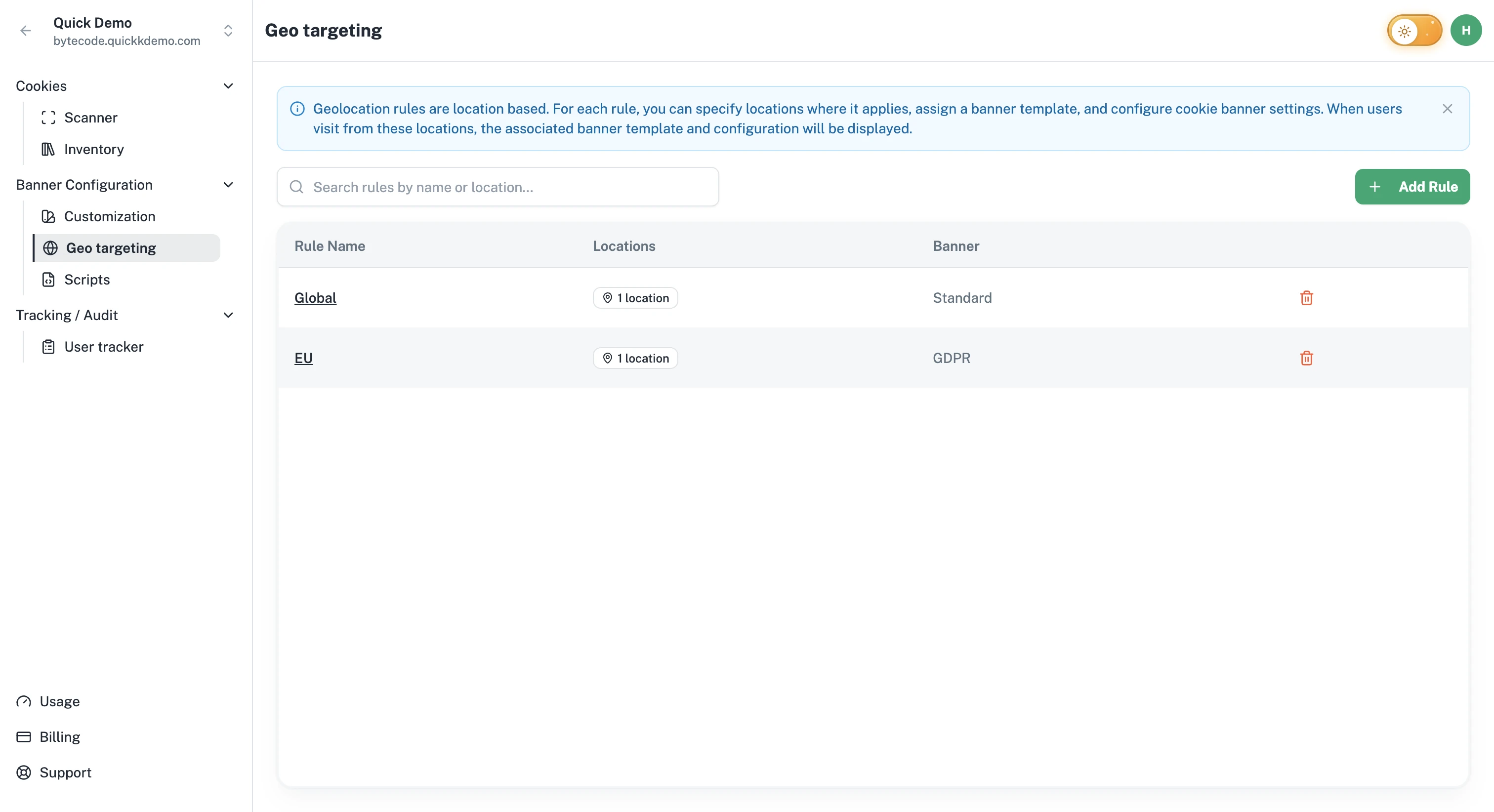
Open your project. In the left sidebar, under Banner Configuration, click Geo targeting.
What a rule contains
Each rule pulls together three things:
A name. Just for you. Examples: "Europe (GDPR)", "California (CCPA)", "Default".
One or more locations. Country or region codes the rule applies to.
A banner. Which banner customization to show visitors that match this rule.
You can also set per-category defaults (whether Functional, Performance, or Targeting cookies are on or off by default in that region).
How rules are matched
When a visitor lands on your website, One Privacy detects their location and looks for a rule that matches.
If a rule includes their region, that rule's banner is shown.
If no rule matches, the rule with the Default badge is used.
Suggested setup for a global website
Most teams start with four rules.
Europe (GDPR). Covers EU member states plus the UK. Uses an opt-in banner with Accept All, Reject All, and Manage Settings clearly visible.
California (CCPA). Covers California. Uses an opt-out banner with the "Do Not Sell" option visible.
India (DPDP). Covers visitors in India. Uses an opt-in banner with Indian languages added so consent reads naturally.
Default. Covers everyone else. Uses a lighter banner that still gives visitors a way to manage their consent.
You can add more rules over time as you expand into new markets.