Searching consent records
The Consent Audit is keyed by visitor. To open the audit, you provide a User ID and an optional date range, and One Privacy returns the full history for that user.
Why search by user
Privacy requests almost always come from a specific person ("show me everything you have on this visitor"). Searching by user ID lets you respond to those requests in seconds.
Open the search screen
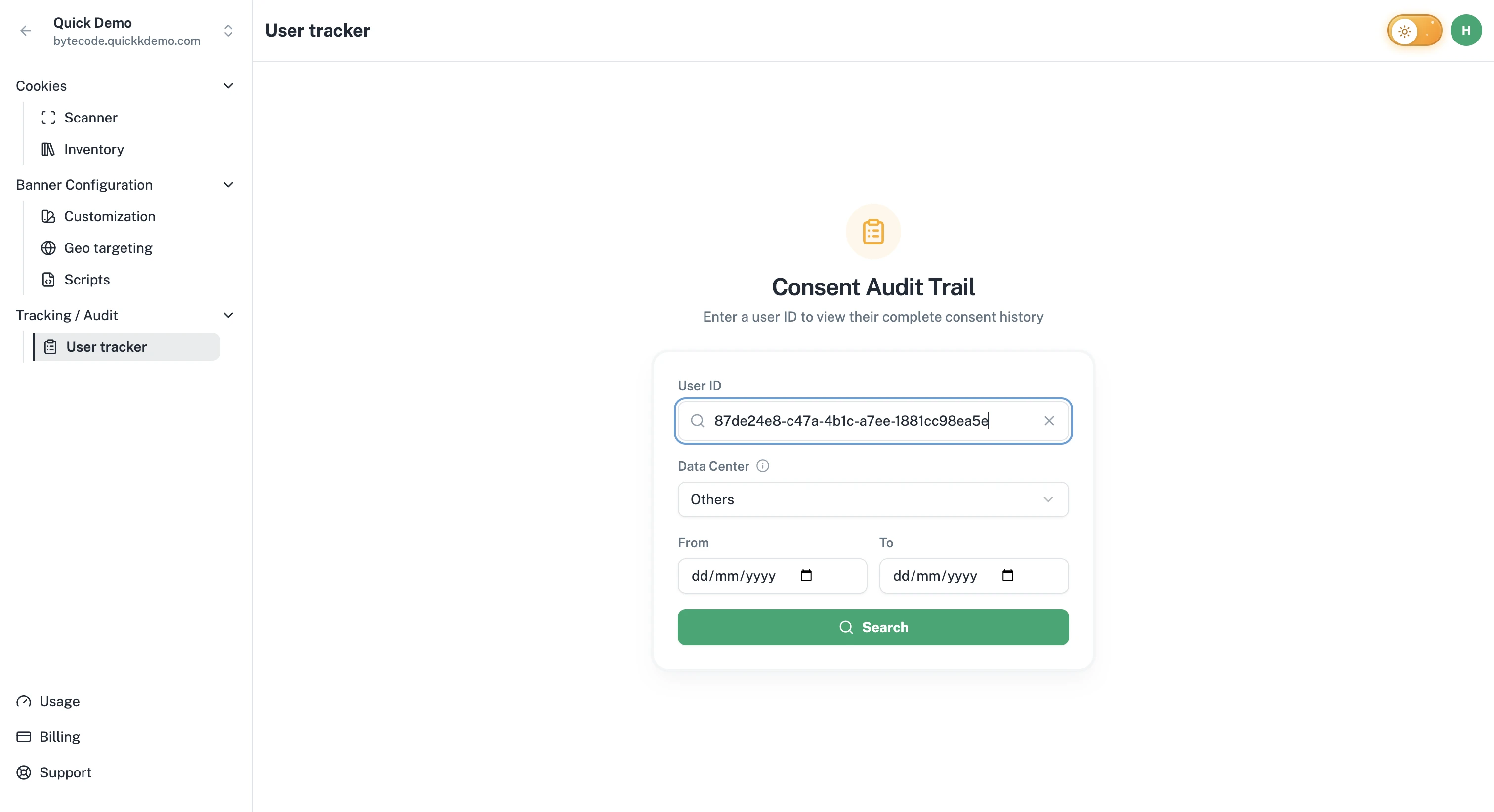
Open your project. In the left sidebar, click User tracker.
What you'll need
User ID. A unique identifier for the visitor, stored by One Privacy in the visitor's browser (in local storage). Customers usually find it from a privacy request submission, from a developer-built profile page, or by reading it from the browser during a support call.
Date range (optional). Pick a From and To date to limit the search. Useful when investigating a specific incident or request period. Leave blank to see the full history.
Data Center. Consent records are stored close to where the visitor is. If the visitor came from the EU, their records live in the EU data center; records for everyone else live in Others. The selector defaults to Others, so switch it to EU when you're looking up an EU visitor.
Run the search
Type the User ID into the box, optionally pick the dates, and click Search. The audit detail page opens with all the records for that user.
If you press Enter inside the User ID field, the search runs straight away.
What if no records show up?
Switch the Data Center and search again. This is the most common cause: an EU visitor's records only appear when EU is selected, and the selector defaults to Others.
Check the User ID for typos. They're long and easy to mistype.
Try widening the date range or removing it altogether.
If the visitor cleared their browser data, One Privacy issues a new User ID the next time they visit. Their previous history is still in the audit, just under the previous ID.