Visibility settings
The Visibility accordion is the simplest way to shape the banner: turn buttons and icons on or off until the banner shows only what you want.
Open the visibility settings
In your project, open Customization. Make sure the Banner tab is active. Expand the Visibility accordion at the top.
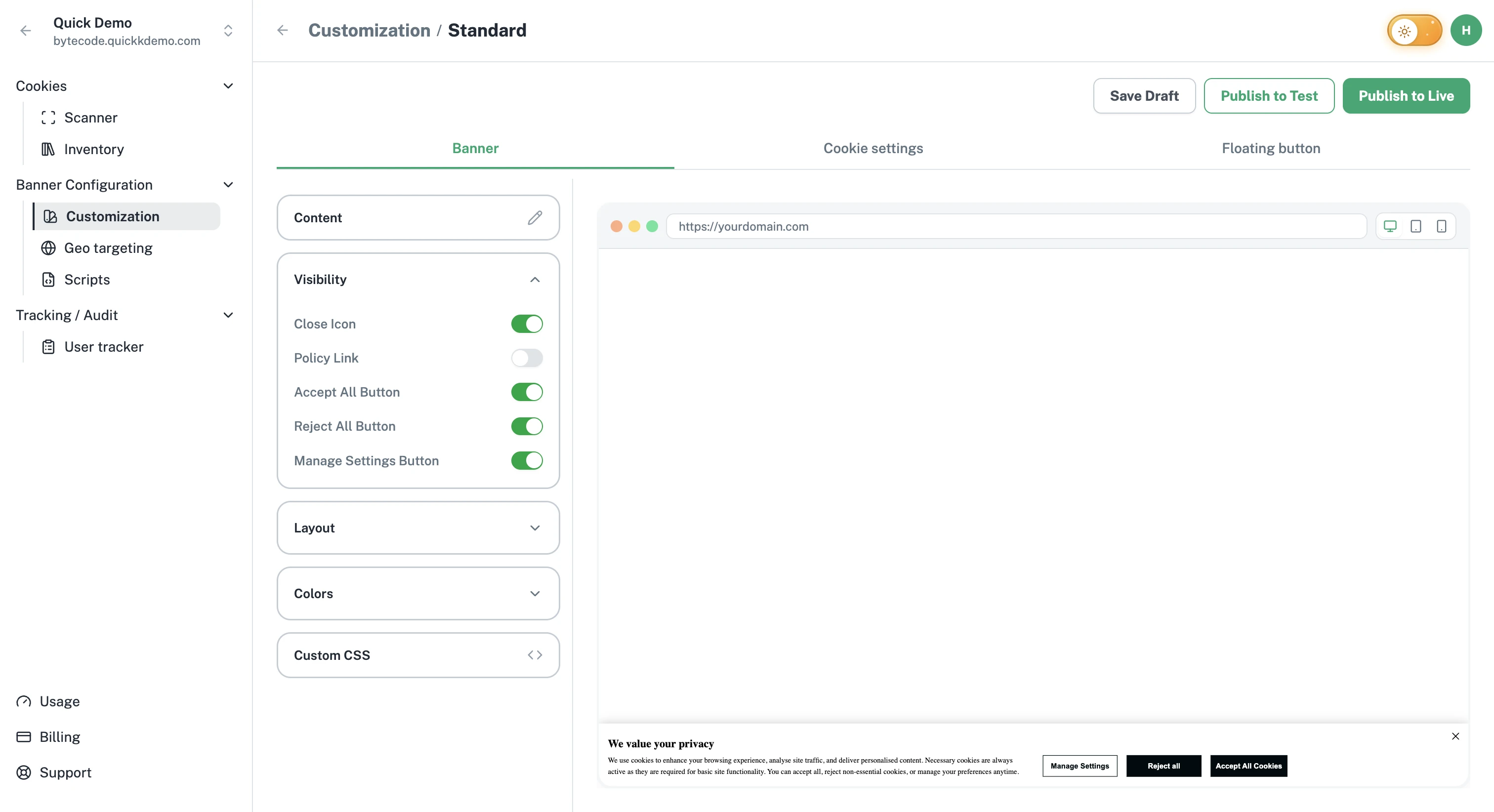
What you can toggle
Accept All Button. Lets visitors accept every category in one click.
Reject All Button. Lets visitors decline every non-essential category in one click.
Manage Settings Button. Opens the Cookie Settings popup so visitors can choose category by category.
Close Icon. A small X in the corner of the banner.
Policy Link. The cookie policy link on the banner.
Each one is a simple on/off toggle. Changes appear in the live preview immediately.
Which toggles you see depends on the banner type: a Standard banner has all of the above, while a GDPR banner only offers the Close Icon (its buttons are always shown, as the regulation expects).
Sensible combinations
The full banner. Accept All, Reject All, Manage Settings, and the Close icon all on. Recommended for most websites.
Strict opt-in. Accept All, Reject All, and Manage Settings on, Close icon off. With no way to dismiss the banner, visitors must make an explicit choice.
Lighter regions. Hide Reject All if your geo rule for that region only requires an opt-out experience.
What about the Cookie Settings popup?
The Cookie Settings popup has its own visibility controls (close icon, Accept All button, and which categories are shown). Find them in the Cookie settings tab. See Cookie settings popup.
What about the Floating button?
The floating button has a single visibility toggle of its own. See Floating cookie settings button.