Previewing your banner
The right side of the Customization screen is a live, interactive preview of your banner. Every change you make appears immediately so you can see exactly what visitors will see.
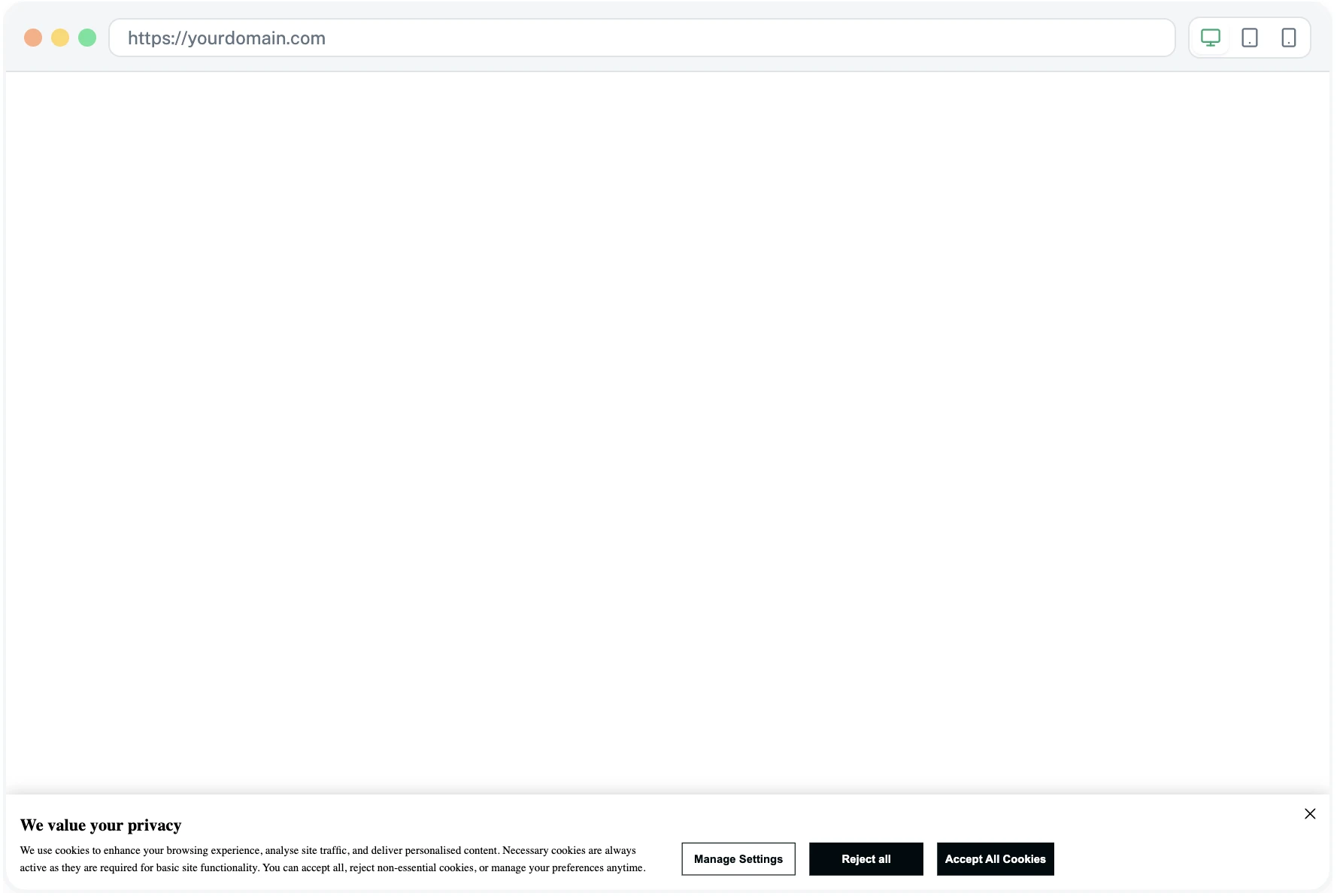
What the preview shows
The preview reflects the tab you're currently editing.
Banner tab. Shows the main banner with all the visibility, layout, color, and content changes you've applied.
Cookie settings tab. Shows the popup that opens when a visitor clicks Manage Settings.
Floating button tab. Shows the small persistent button.
Try it as a visitor would
The preview is interactive. Click Manage Settings to open the Cookie Settings popup. Click the floating button to reopen the popup. Try Accept All and Reject All to make sure each option behaves the way you expect.
Switch languages in the preview
If you've added languages, a small dropdown above the preview lets you switch the preview to any of them. Use it to sanity-check your translations before you publish.
Preview Custom CSS
Custom CSS is applied to the preview only when you click Preview inside the CSS editor. This stops typos in the editor from breaking your draft. See Custom CSS.
When you're happy with the preview
Save your changes. The next steps are Save draft, Publish to Test, and finally Publish to Live.