Layout and position
The Layout accordion controls where the banner sits on the page. The right choice depends on the rest of your design and how visible you want the banner to be.
Open the layout settings
In your project, open Customization. On the Banner tab, expand the Layout accordion.
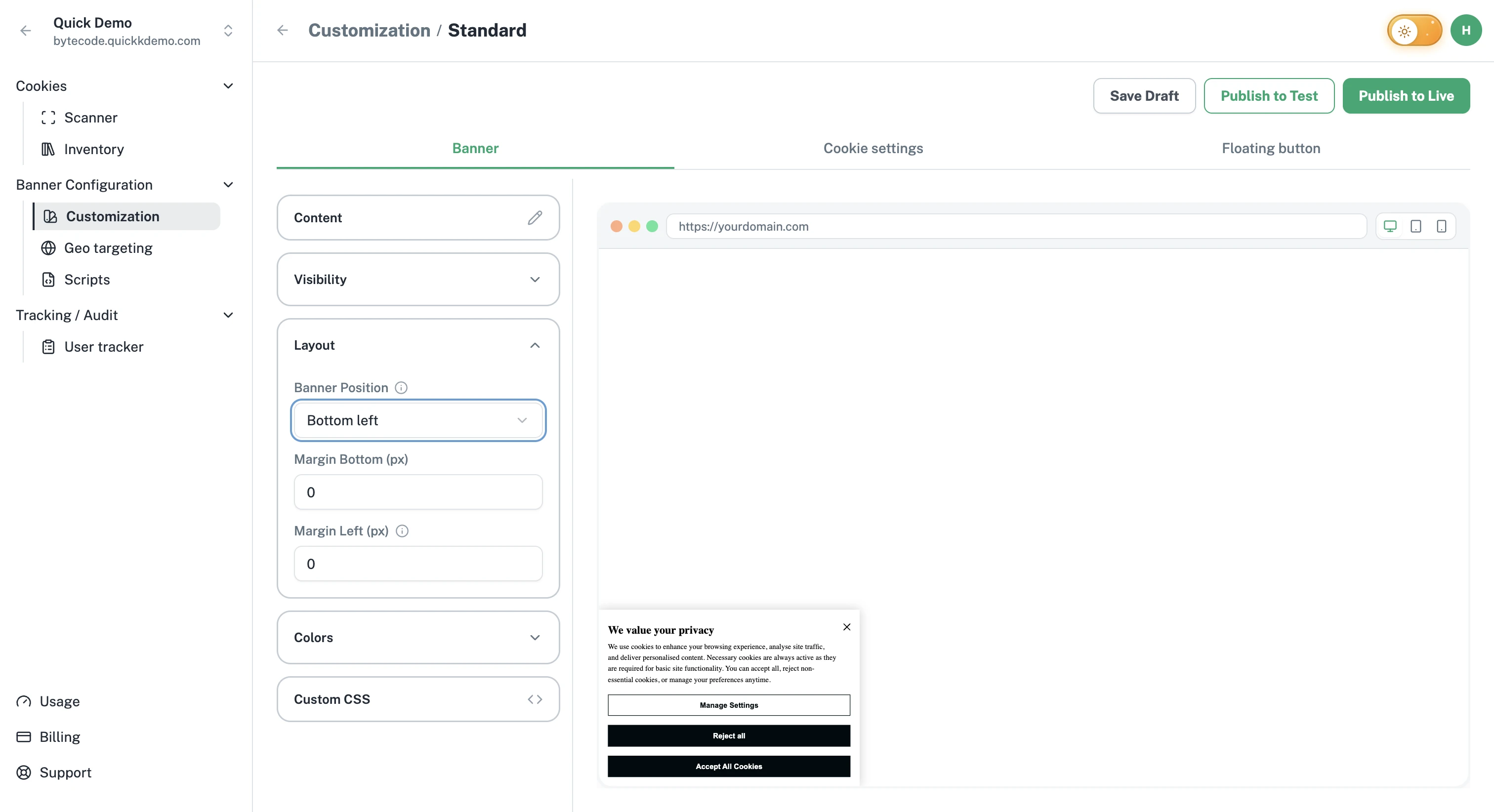
Banner position
Pick one of three positions from the dropdown.
Bottom. Stretches across the full width of the page along the bottom. The most common choice.
Bottom left. A compact banner anchored to the bottom-left corner.
Bottom right. A compact banner anchored to the bottom-right corner.
The live preview updates immediately so you can compare each one.
Margins
Add space around the banner so it doesn't sit flush against the edge of the screen. The inputs shown match the position you picked:
Bottom. A single Margin Bottom input.
Bottom left. Margin Bottom and Margin Left.
Bottom right. Margin Bottom and Margin Right.
All values are in pixels and accept whole numbers.
When to use each position
Bottom. Great for high-visibility consent flows. Works on every screen size.
Bottom left or right. Better for sites with a chat widget in the opposite corner, or when you want a less prominent banner.
A note on mobile
The full-bottom banner adapts gracefully on small screens. The left and right corner positions also work on mobile, with their width capped to fit comfortably.