Custom CSS
The visual settings cover the styling most teams need. If your brand needs gradients, custom fonts, particular button shapes, or anything else beyond what the controls offer, the CSS editor lets your designer or developer take over.
Open the CSS editor
In your project, open Customization. Click the Custom CSS button (it sits among the customization controls).
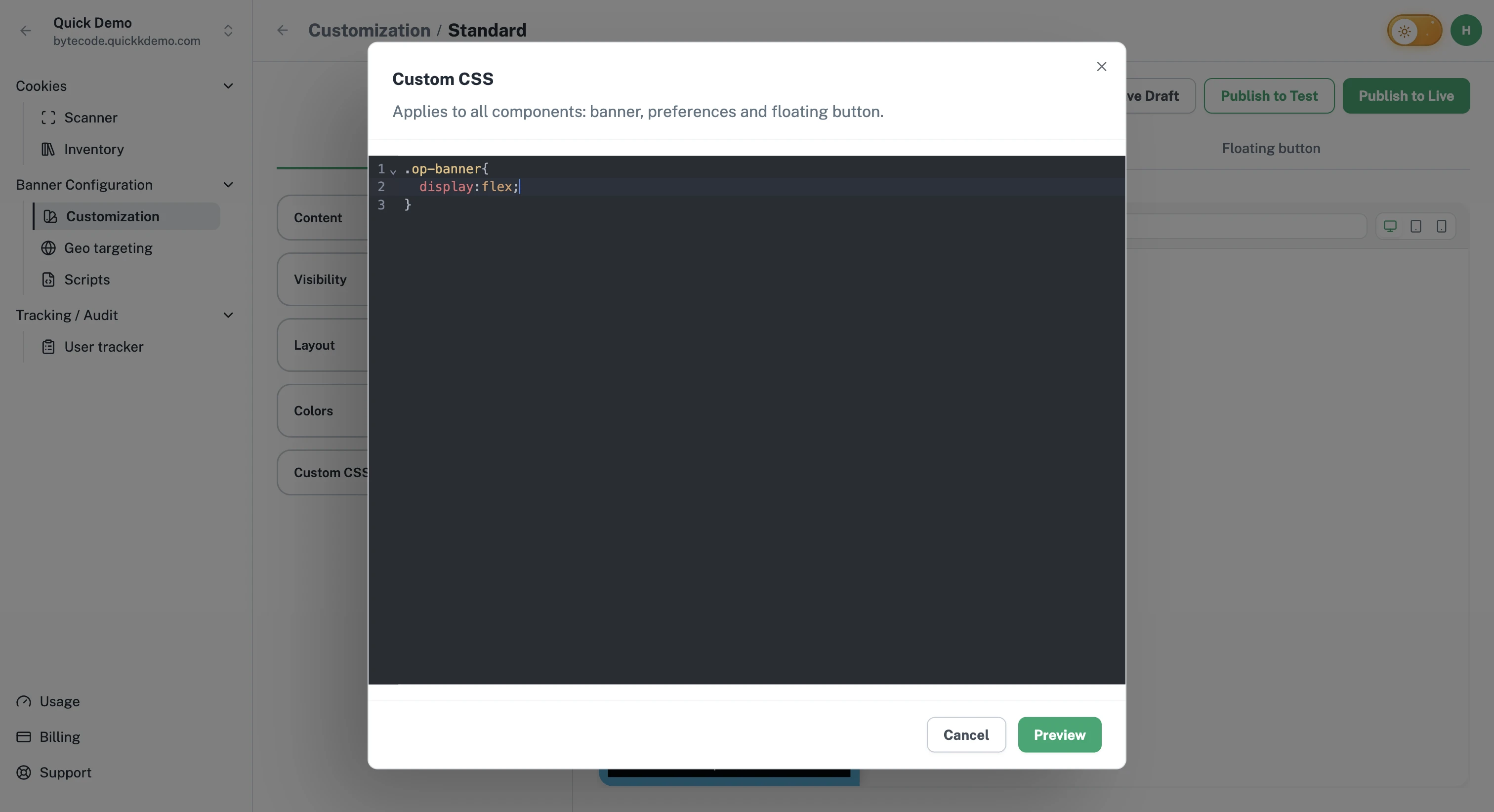
The editor opens with a code area and a Preview button. The styles you write here apply to all three components: the banner, the Cookie Settings popup, and the floating button.
Write your CSS
The editor accepts standard CSS. Reference One Privacy's class names to target specific elements (background, text, individual buttons, the floating button icon, and so on).
When you're happy with a change, click Preview to apply it to the working customization and see it in the live preview. Click Cancel to discard instead. Previewed CSS still isn't saved anywhere until you Save Draft or publish.
Tips
Test on every screen size. The banner adapts on mobile. Verify your CSS still looks right at narrow widths.
Avoid !important unless you must. It often hides a more correct selector.
Stick to brand colors and fonts. A subtle, on-brand banner builds more trust than a wildly customized one.
When this is helpful
Adding a brand-specific font face.
Using a gradient background.
Rounding corners or adding shadows beyond what the controls allow.
Adding subtle animations on hover.
What you cannot do here
You cannot change what the banner does. CSS only controls how it looks. Behavior, like which buttons appear or which categories ask for consent, is controlled in the visibility and content settings on the main customization screen.