Team and roles
One Privacy is built to be used by a team. Marketing, compliance, and developers can all share the same dashboard, with each person seeing only what's right for their role.
Open the Manage Users page
In the Workspaces page, click the Manage Users icon (the people icon) on the card of the workspace you want to manage.
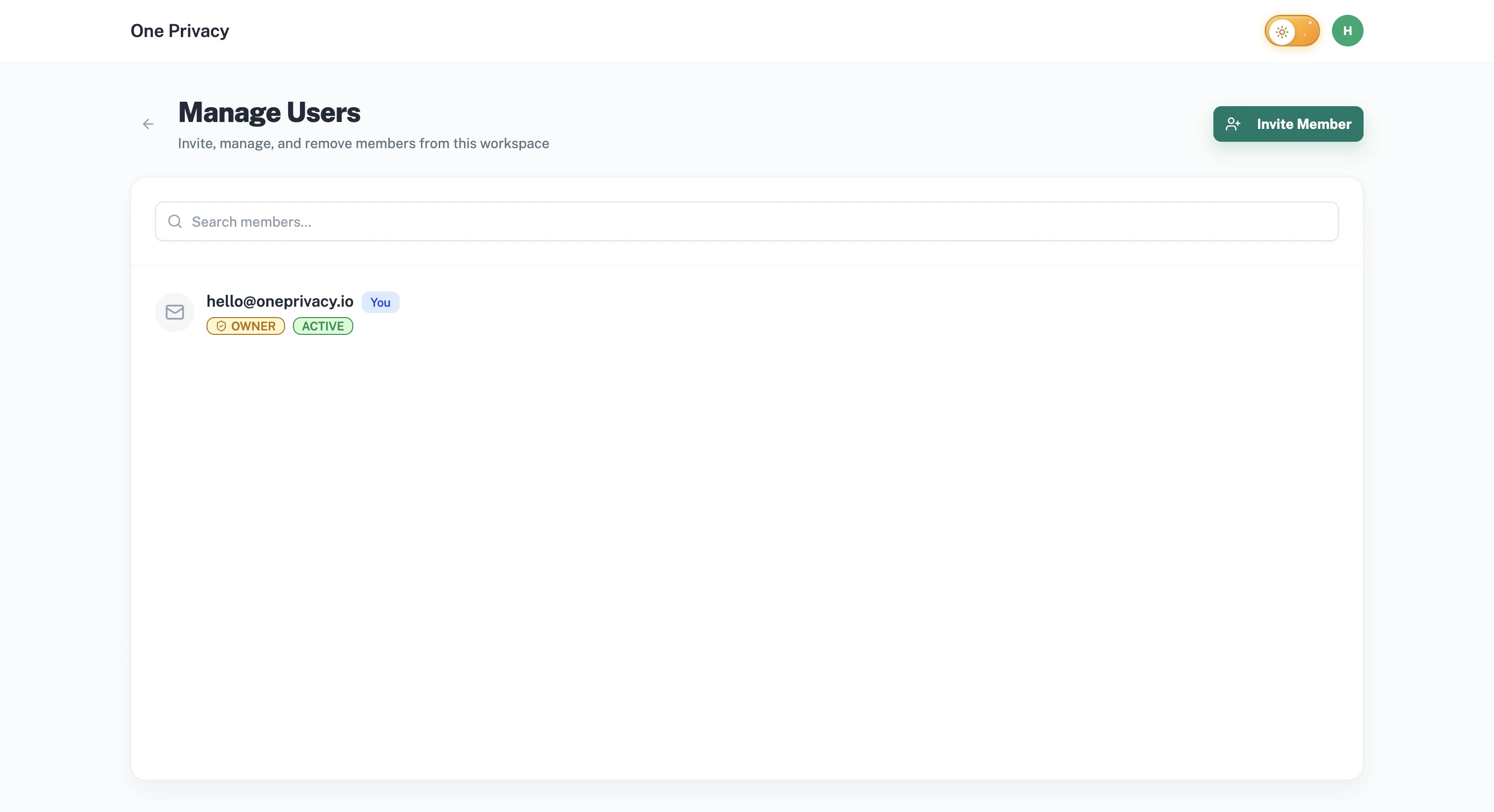
The three roles
| Role | What they can do |
|---|---|
| Owner | Everything. The person who created the workspace. |
| Admin | Full access. Manage members, settings, banners, and scans. Cannot remove the Owner. |
| User | View only. Can see banners, scans, and consent records, but cannot make any changes. |
Permission cheat sheet
A quick reference for who can do what:
| Action | Owner | Admin | User |
|---|---|---|---|
| View dashboard | ✓ | ✓ | ✓ |
| Run scans | ✓ | ✓ | |
| Edit banners | ✓ | ✓ | |
| Publish to Live | ✓ | ✓ | |
| Manage geo rules | ✓ | ✓ | |
| Edit cookie inventory | ✓ | ✓ | |
| View consent audit | ✓ | ✓ | ✓ |
| Export consent audit | ✓ | ✓ | |
| Invite or remove members | ✓ | ✓ | |
| Remove the Owner |
Invite someone new
Click Invite Member, enter their email, pick a role, and click Send Invite. They'll receive an email with a link to join.
For the full walkthrough, see Inviting team members.
Change a role
Roles are set when the invite is sent and can't be edited afterwards. To move someone to a different role, remove them from the workspace and invite them again with the new role. Their access updates as soon as they accept the fresh invite.
Remove a member
Click the trash icon next to a member's name. Confirm in the dialog that opens. They lose access right away.
You cannot remove the Owner. To change ownership, contact the current Owner or contact support.